Property manager guides
Use the Agent: ask, approve and automate
Ask the Agent about your workspace, decide what it may do on its own with Agent rules, approve what it proposes and set up routines.
- Updated
- Reading time
- 2 min read
On this page
The Agent reads, searches and works across your workspace within your permissions. It can answer questions such as who is behind on rent, draft and send messages, open work orders, request quotes and run routines that watch for problems. You decide, action by action, whether it only drafts, waits for your approval or acts automatically within limits you set. Some things it never does, whatever the settings.
Ask the Agent
 (opens the full-size screenshot)
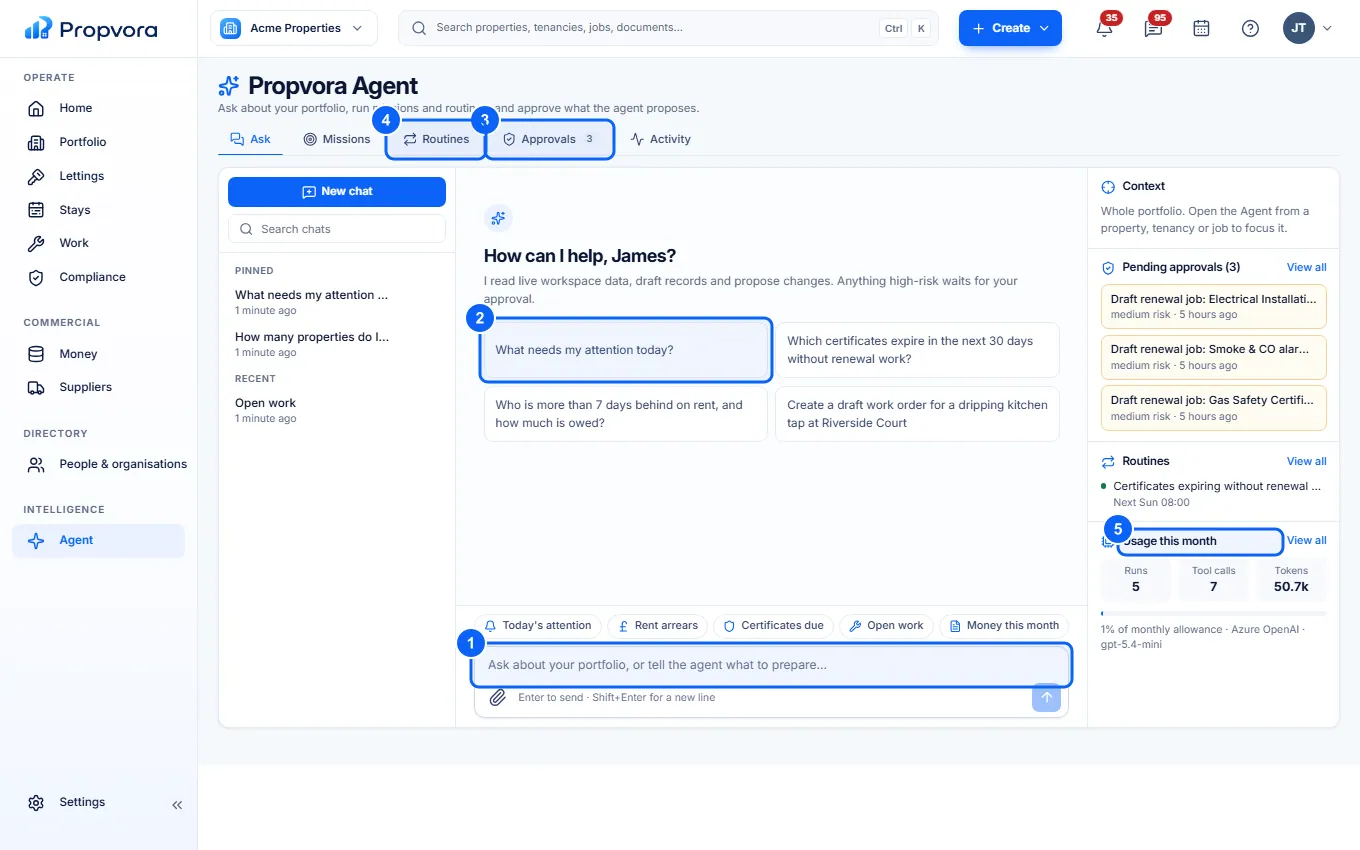
- Type your question into Message the agent and choose Send. You can attach files.
- Or pick a suggested question such as What needs my attention today?
- Approvals: actions the Agent has proposed and is waiting for you to approve.
- Routines: checks that run on a schedule.
- Usage this month: how many credits you have used.
Answers link to the records they are based on. Missions groups multi-step work, and Activity lists everything the Agent has done.
Approve what the Agent proposes
 (opens the full-size screenshot)
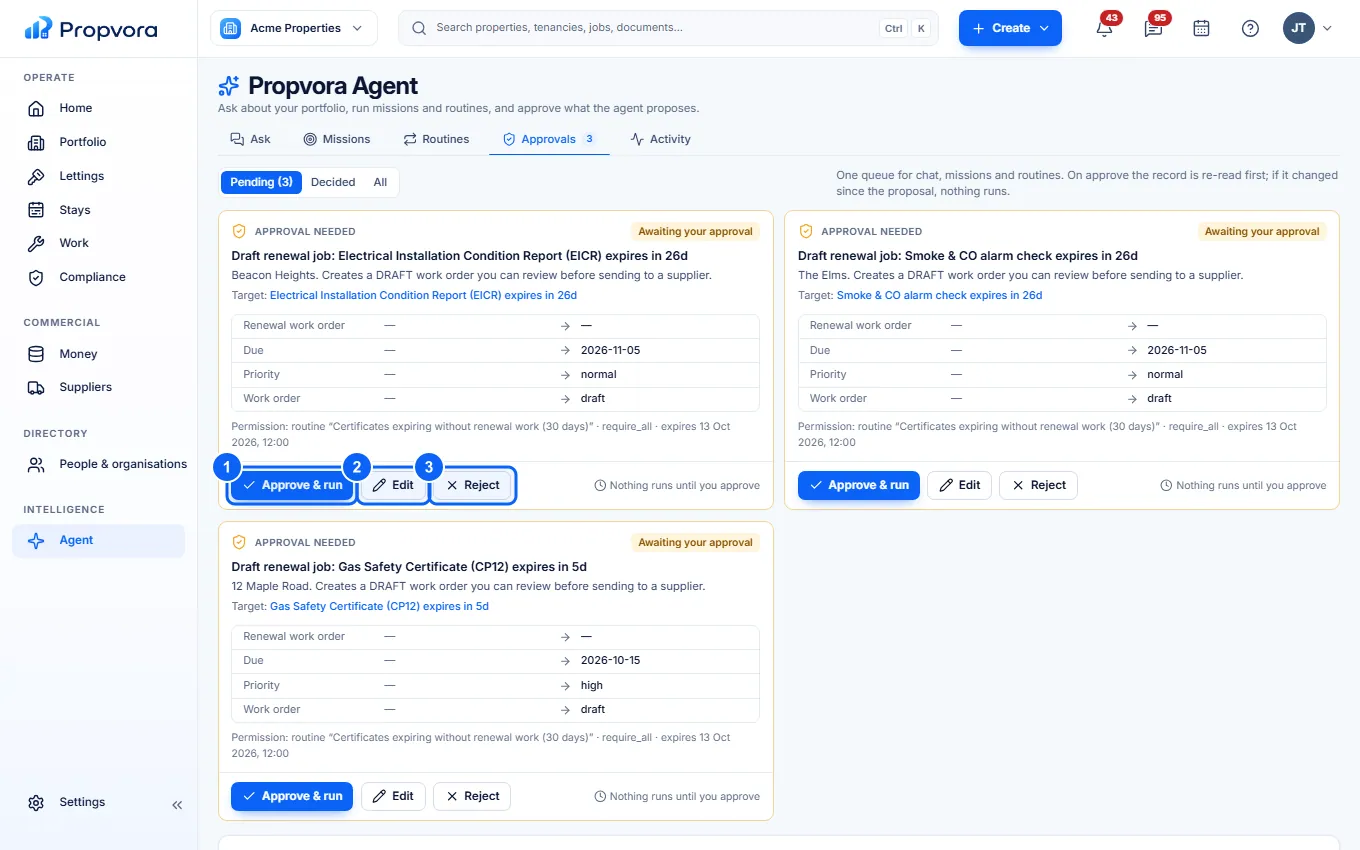
- Approve & run: carry out the action as proposed.
- Edit: change the details first, for example the wording of a message.
- Reject: decline it. Nothing is changed.
What waits for approval depends on your Agent rules (below). Every action, approved or automatic, is recorded in the audit log and in Activity.
Decide what the Agent may do: Agent rules
 (opens the full-size screenshot)
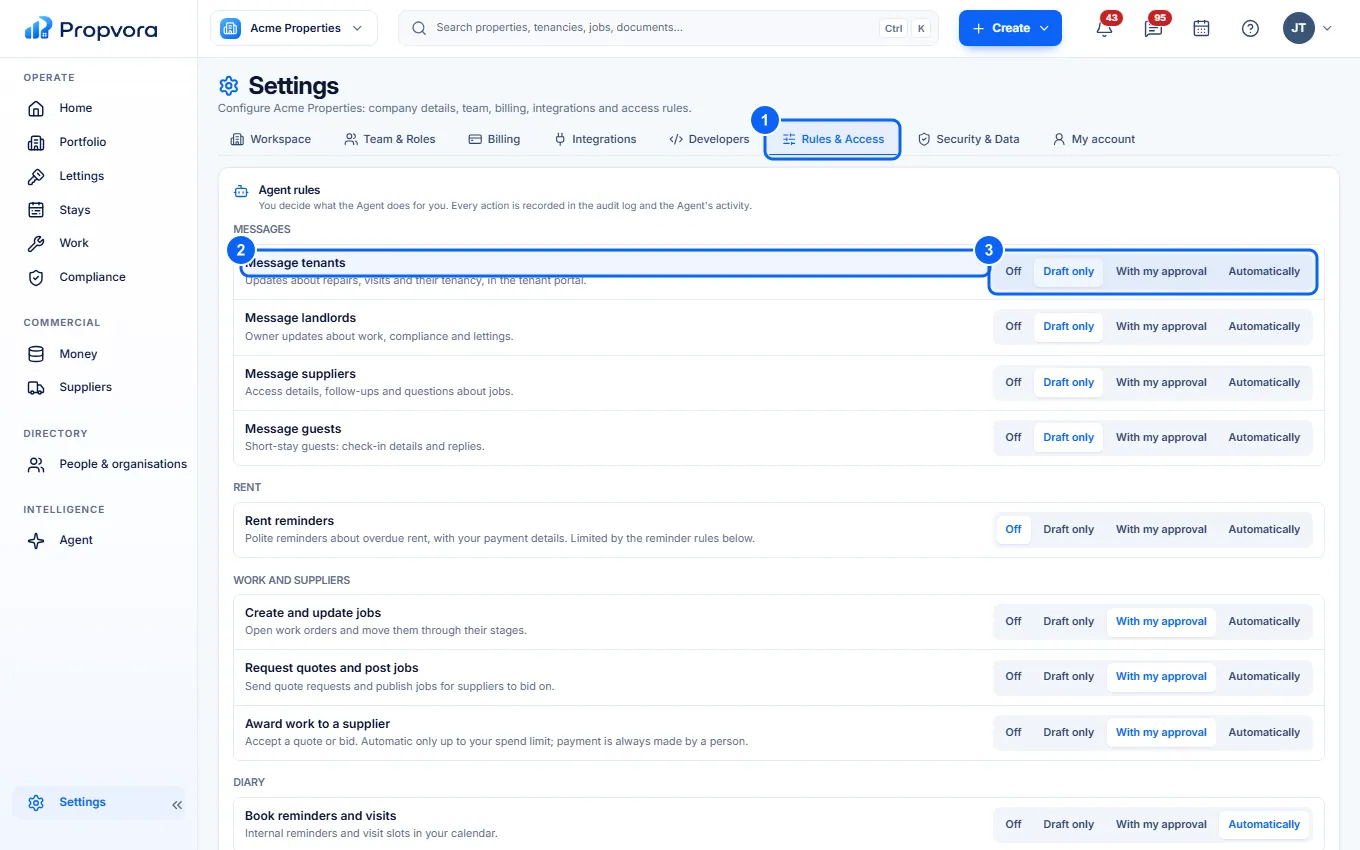
- Open Settings › Rules & Access. Only owners and admins can change the Agent rules.
- Each row is one kind of action, grouped into Messages, Rent, Work and suppliers, Diary and Tenancies, for example Message tenants, Rent reminders, Create and update jobs, Request quotes and post jobs and Award work to a supplier.
- For each row choose Off, Draft only (the Agent prepares it and you send it), With my approval (it waits in Approvals) or Automatically.
 (opens the full-size screenshot)
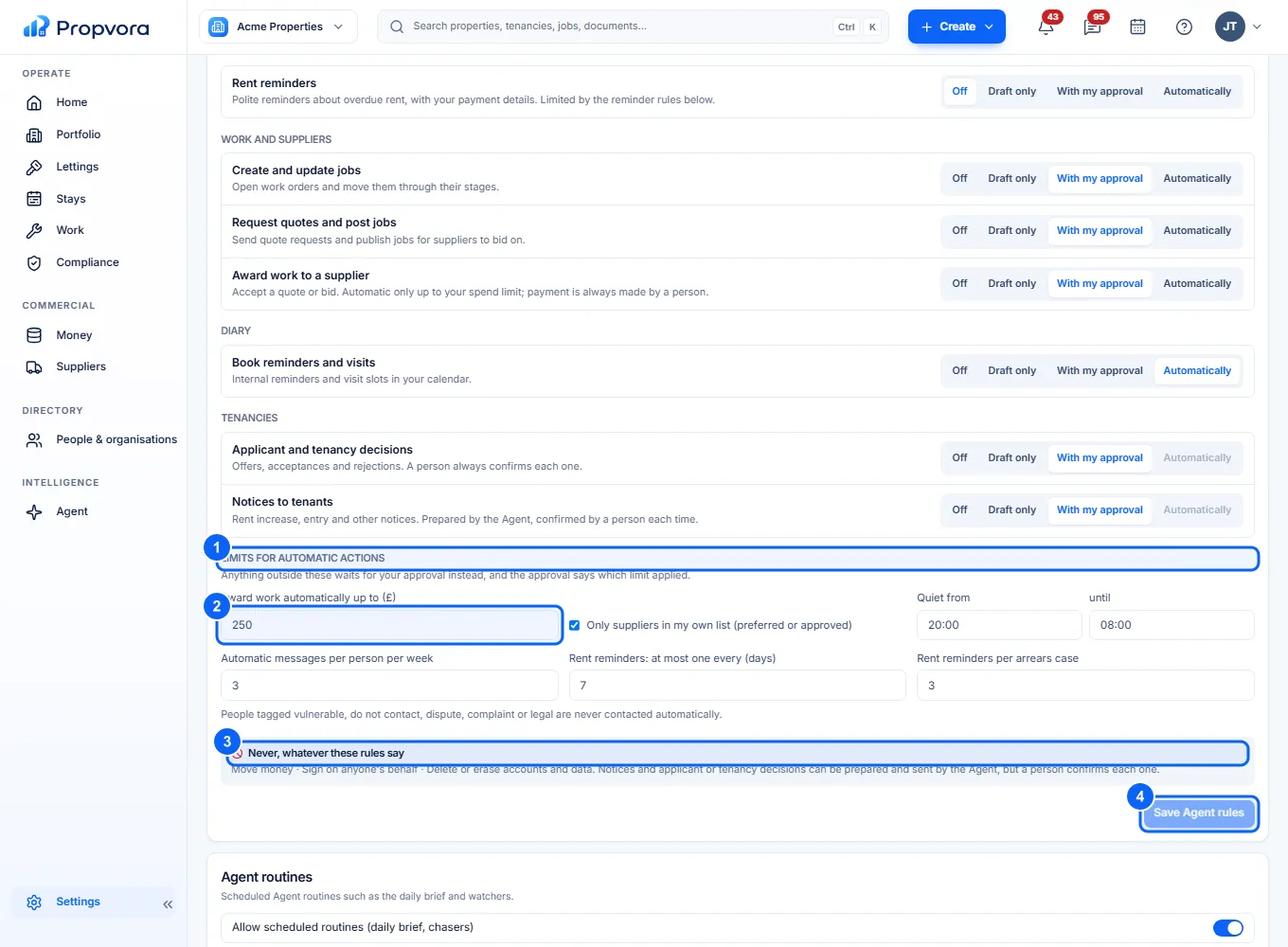
- Limits for automatic actions: anything outside these waits for your approval instead, and the approval says which limit applied.
- Set Award work automatically up to (£), and whether automatic awards go Only suppliers in my own list (preferred or approved). You can also set quiet hours, a weekly cap on automatic messages per person and how often rent reminders may be sent.
- Never, whatever these rules say: the Agent never moves money (payments, payouts, refunds and charges are always made by a person), never signs on anyone's behalf and never deletes accounts or data. Applicant and tenancy decisions and notices to tenants are always confirmed by a person.
- Choose Save Agent rules. They apply to the Agent's next action.
Set up a routine
 (opens the full-size screenshot)
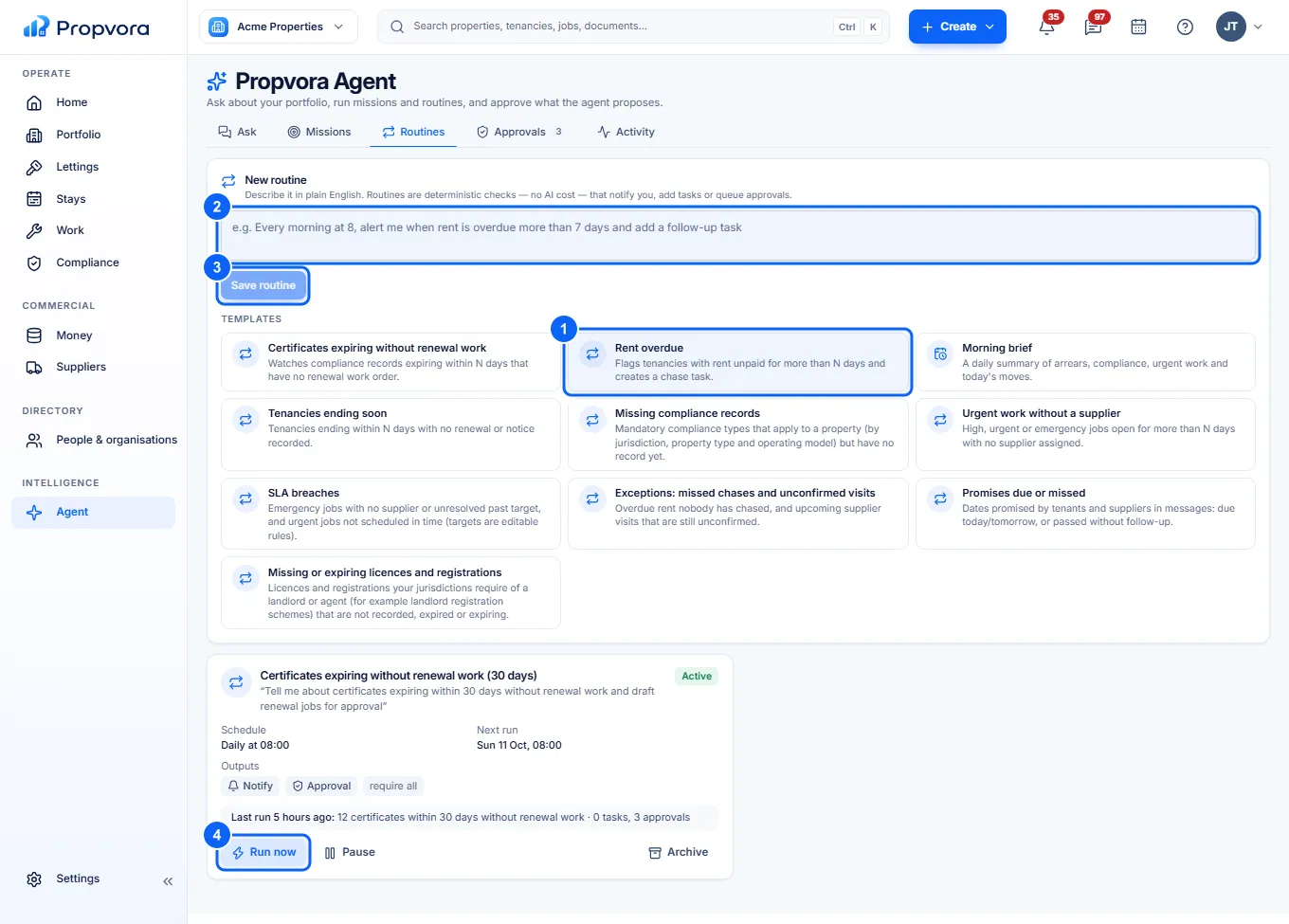
- Pick a template, such as Rent overdue, Certificates expiring without renewal work or Morning brief.
- Adjust the Routine instruction if you need to.
- Choose Save routine.
- Use Run now to try it, and Pause or Archive to stop it.
Read how your data is handled in The Agent and your data.