Property manager guides
Lettings: publish a rental and manage applicants
Publish long-let listings to the Propvora marketplace, then track applicants and viewings from enquiry to accepted offer.
- Updated
- Reading time
- 1 min read
On this page
Lettings covers the time before a tenancy starts: advertising a vacant unit, collecting applications, booking viewings and moving applicants through checks to an offer.
Find your way around Lettings
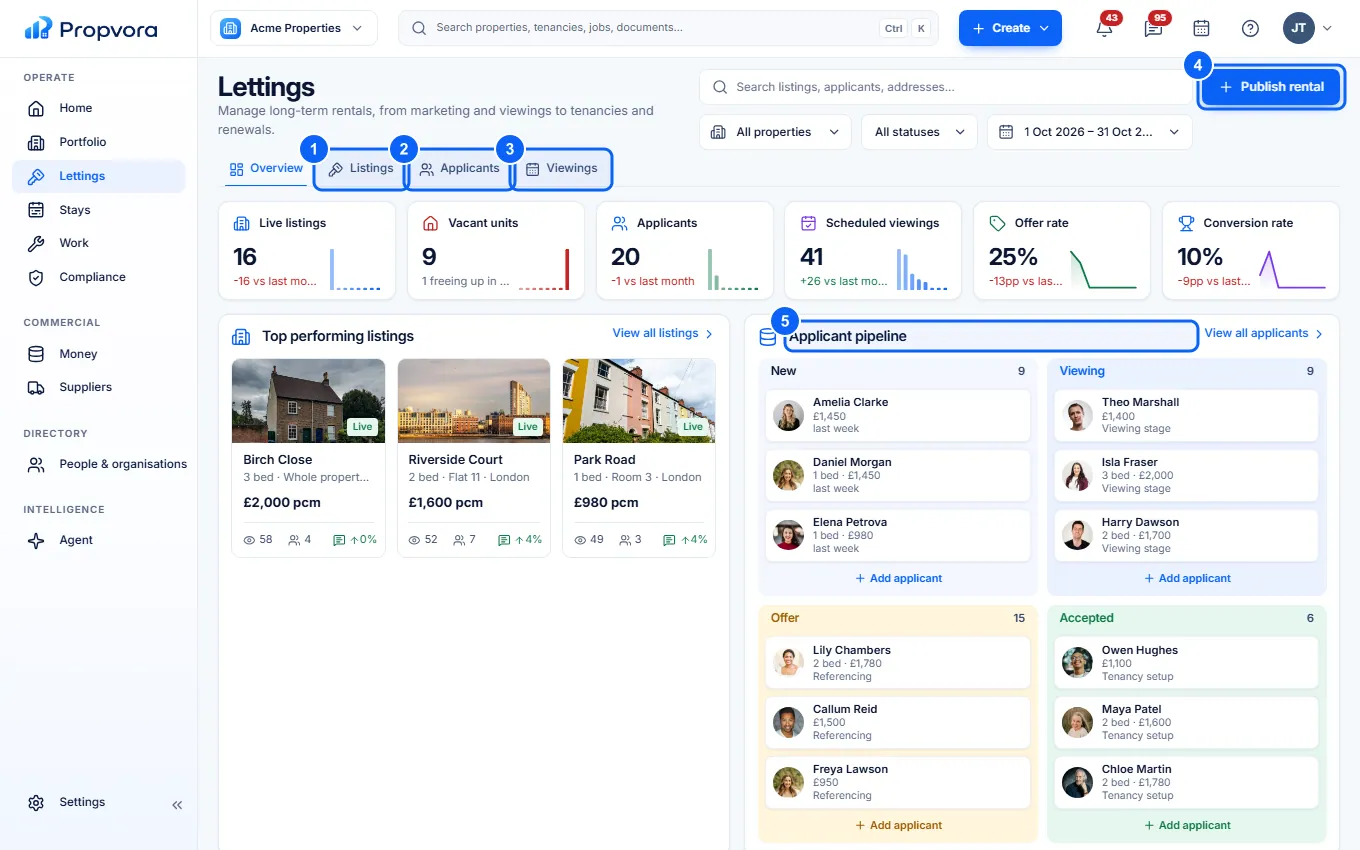 (opens the full-size screenshot)
- Listings: every rental listing with its status.
- Applicants: everyone who has applied, filterable by stage.
- Viewings: booked and requested viewings.
- Publish rental: create a new listing.
- Applicant pipeline: applicants by stage (New, Viewing, Offer, Accepted). Select a name to open the application.
Publish a rental listing
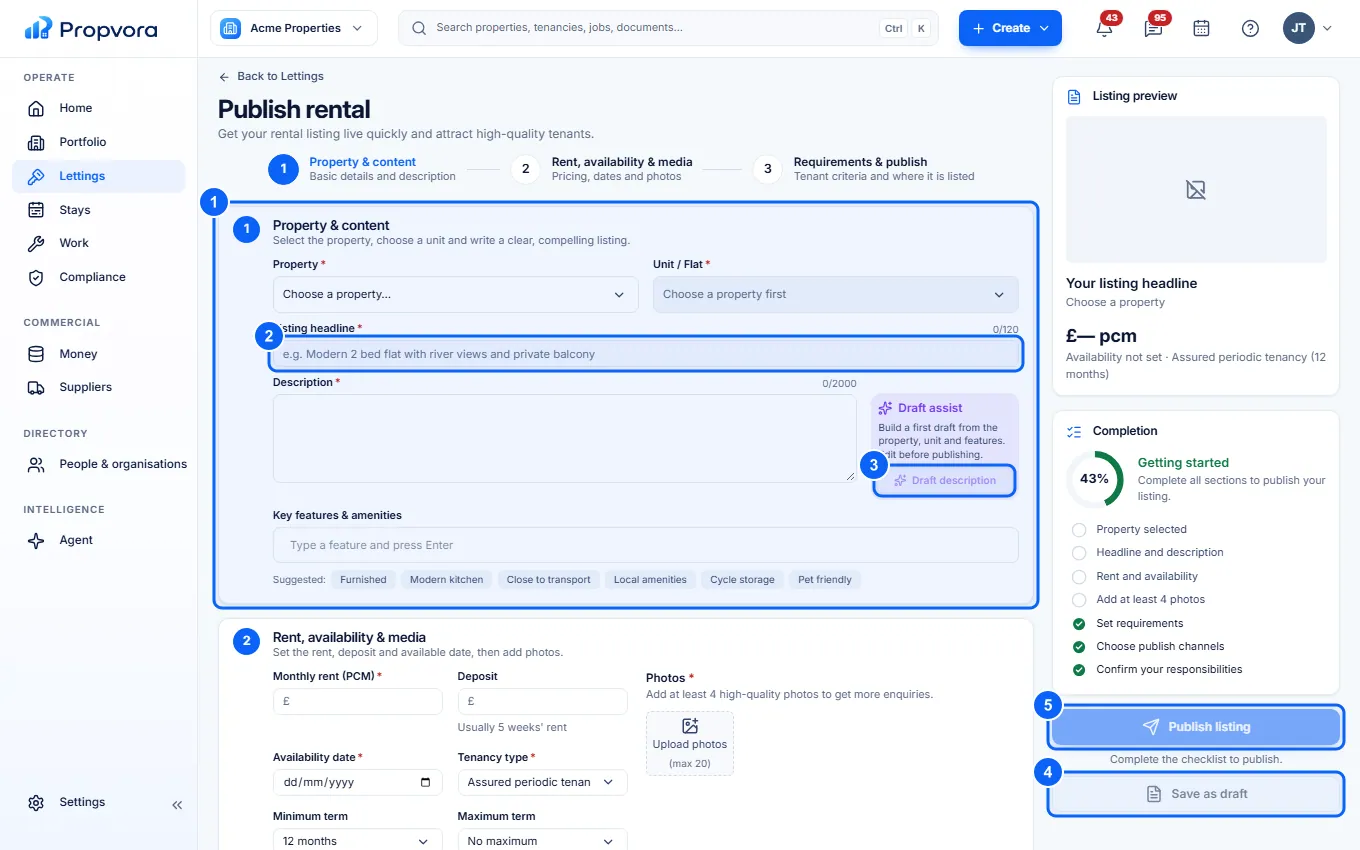 (opens the full-size screenshot)
- Choose the Property and the Unit / Flat you are letting.
- Write a Listing headline (up to 120 characters).
- Write the Description, or choose Draft description to have the Agent write a first draft from the property details for you to edit.
- Add Monthly rent (PCM), Deposit, Availability date, Tenancy type, terms, photos and requirements such as Furnishing, Pets, Income checks and Guarantor, then choose Save as draft if you are not ready.
- Choose Publish listing. The listing appears on the Propvora marketplace, where customers can save it and apply.
Propvora does not publish listings to other property portals.
Manage applicants
- Open Applicants and select an applicant.
- Book or confirm viewings from the application, and request documents. Applicants follow everything in their applicant portal.
- Move the application through checks to an offer. When an offer is accepted, create the tenancy (see Create a tenancy).
Use Add applicant on the Lettings overview to add someone who applied outside Propvora.