Property manager guides
Add and manage properties
Add properties and units, switch between table, card and map views, and use the property page to see occupancy, work, compliance and files.
- Updated
- Reading time
- 1 min read
On this page
Portfolio holds every property and unit you manage. Tenancies, work orders, compliance records, documents and money all link back to a property, so an accurate portfolio keeps the rest of the workspace accurate.
Find your way around Portfolio
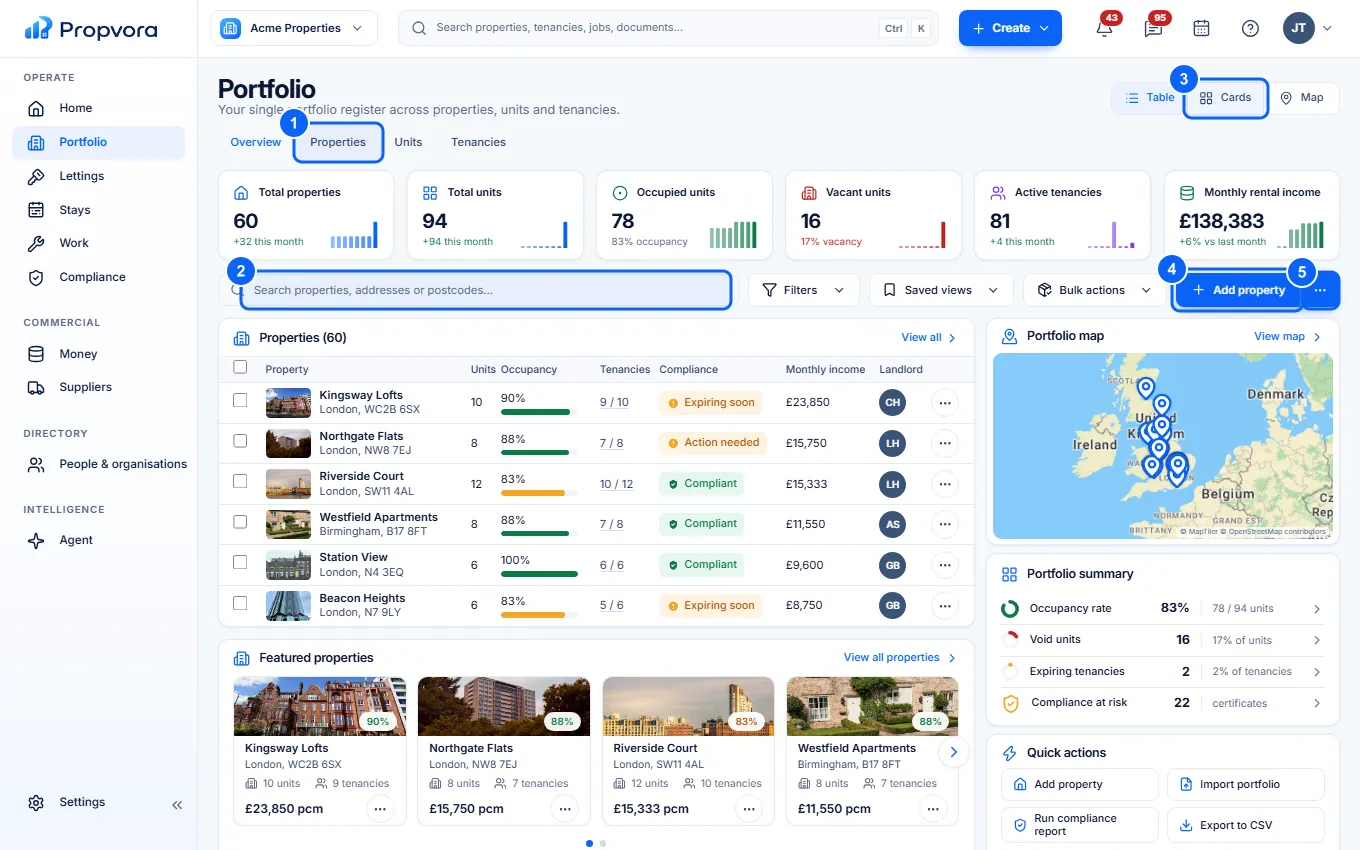 (opens the full-size screenshot)
- Overview, Properties, Units and Tenancies tabs: switch between the summary and each register.
- Search properties, addresses or postcodes: filter the list as you type.
- Table, Cards and Map: choose how the list is shown.
- Add property: start the property wizard.
- More ways to add properties: other ways to add properties, including importing your portfolio from a spreadsheet.
Add a property
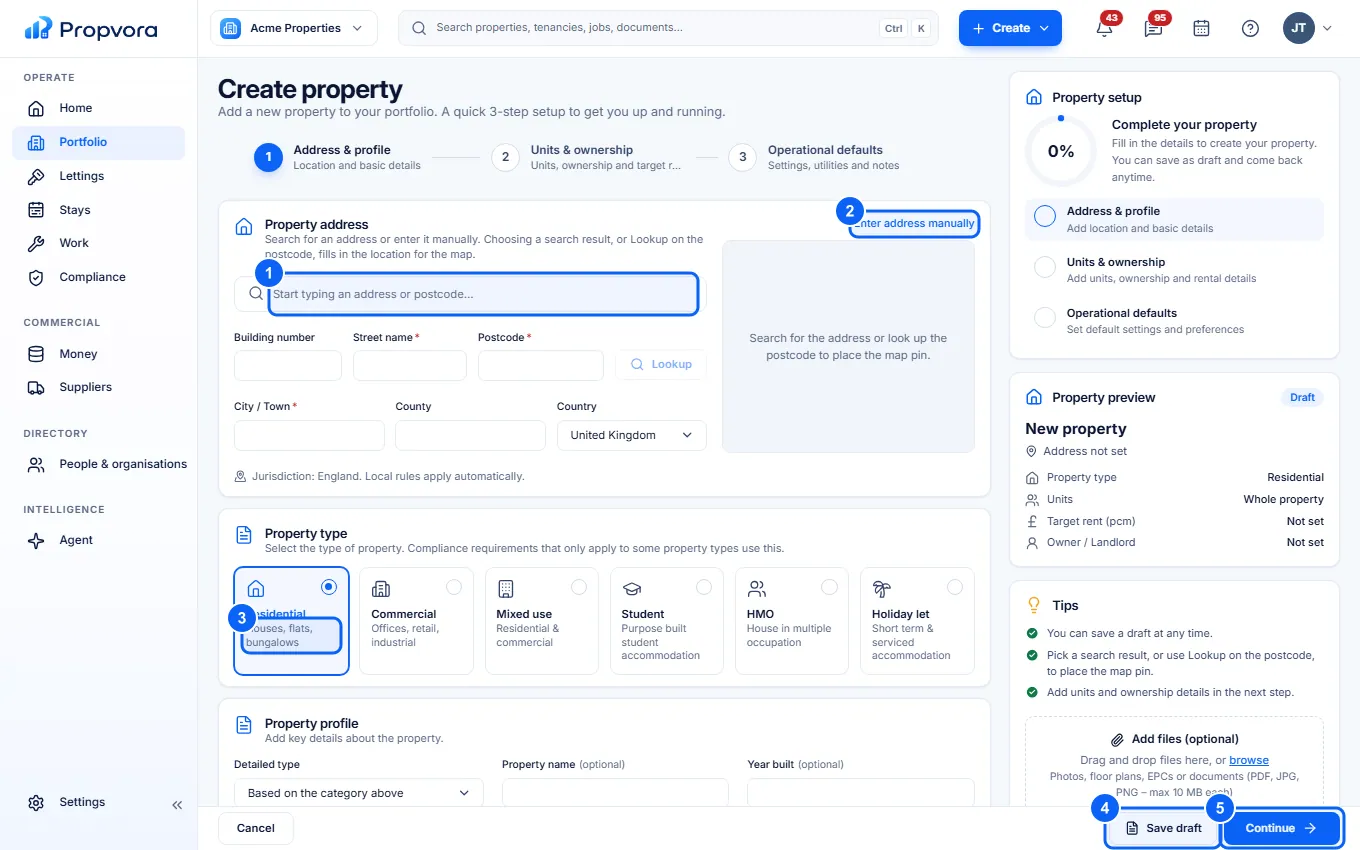 (opens the full-size screenshot)
- Type the address into Search address and choose Lookup, then pick the right address.
- If the address cannot be found, choose Enter address manually and fill in Street name, Postcode and City / Town.
- Choose the property type: Residential, Commercial, Mixed use, Student, HMO or Holiday let, then the Detailed type.
- Choose Save draft at any time to finish later.
- Choose Continue to add the property profile (name, year built, floor area, EPC rating, council tax band) and setup, then create it.
Your plan sets how many properties a workspace can hold. See Property allowance and add-ons.
Work with a property
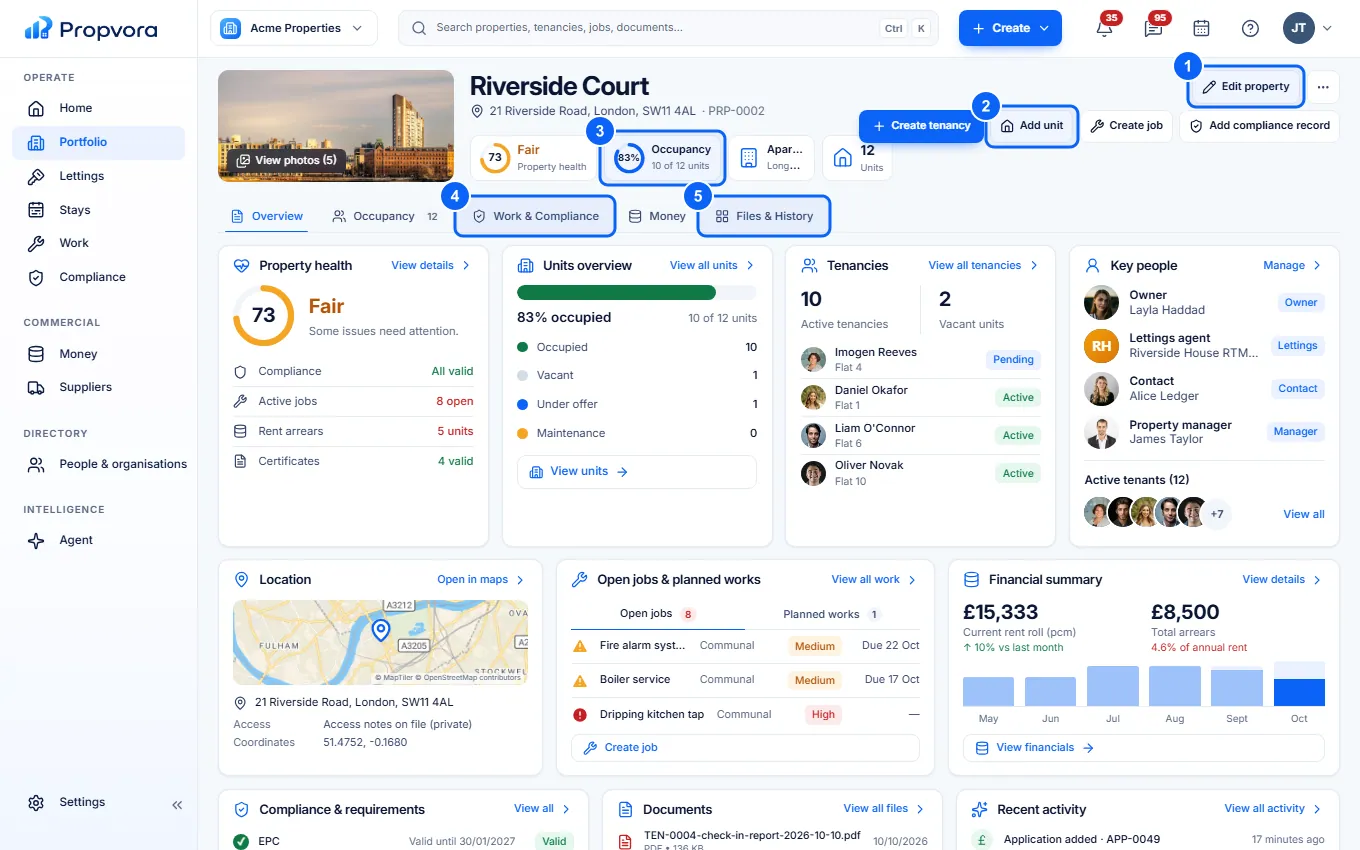 (opens the full-size screenshot)
- Edit property: change the address, type and profile.
- Add unit: add flats, rooms or units to a building. Each unit can have its own tenancy, listing and records.
- Occupancy: units, tenancies and who lives where.
- Work & Compliance: open jobs, planned works and certificates for this property.
- Files & History: documents, photos and the activity log.