Property manager guides
Notifications, email alerts, inbox and calendar
See and clear notifications, choose which ones reach your email and when, and use the shared inbox and calendar.
- Updated
- Reading time
- 1 min read
On this page
Propvora tells you about events that matter, such as a repair reported by a tenant, a new booking, a quote received or a certificate expiring. Notifications appear in the bell, and the important ones can also reach your email, either straight away or in a digest.
Notifications
 (opens the full-size screenshot)
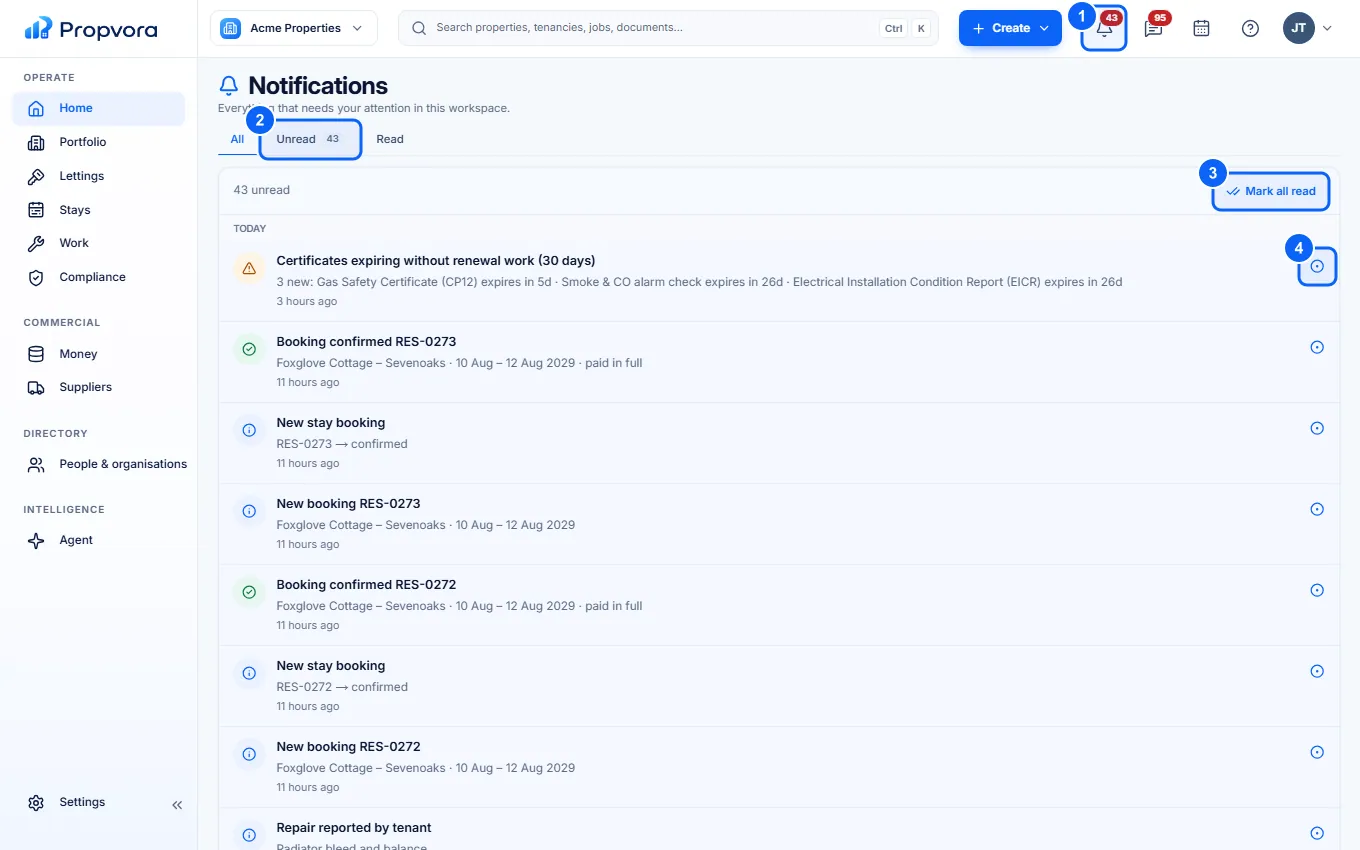
- Select the bell in the top bar for your latest notifications, or open the full Notifications page from it.
- Filter by All, Unread or Read.
- Mark all read clears your unread count.
- Mark a single notification as read, or select it to open the record.
Notifications are personal and belong to the workspace they came from. You never see another workspace's notifications here.
Choose what reaches your email
 (opens the full-size screenshot)
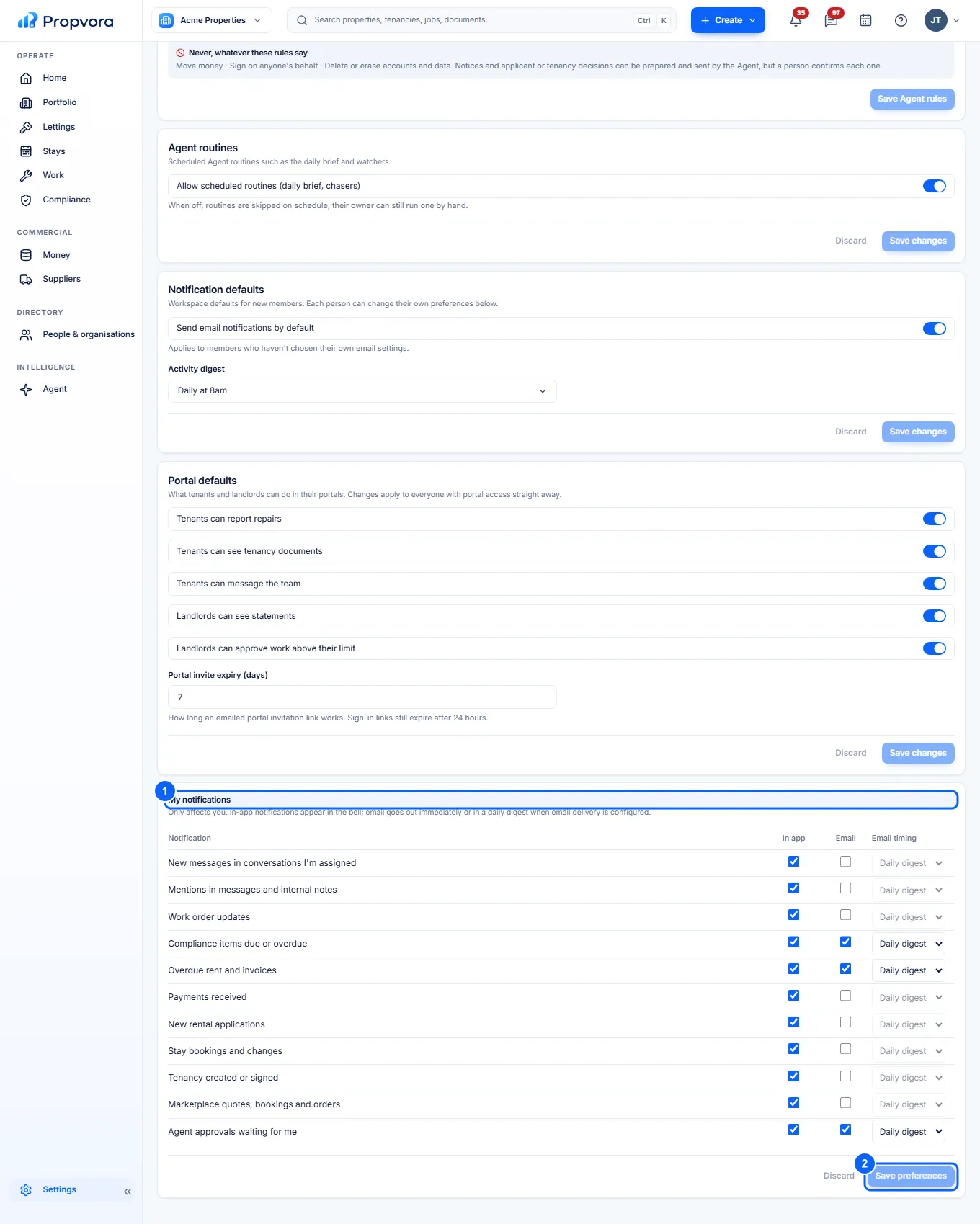
- In My notifications, choose for each type whether you see it In app, whether you get an Email, and the Email timing: Immediately or Daily digest.
- Choose Save preferences.
Workspace admins set the defaults under Notification defaults: Send email notifications by default, and the Activity digest (none, daily or weekly on Mondays). Non-urgent immediate emails wait until quiet hours end; set quiet hours in Settings › Workspace › Communications. Urgent alerts are not held.
Inbox and calendar
Inbox (top bar) holds conversations with tenants, landlords, suppliers and guests, with tabs for each group and an unread count. Choose New conversation to start one.
 (opens the full-size screenshot)
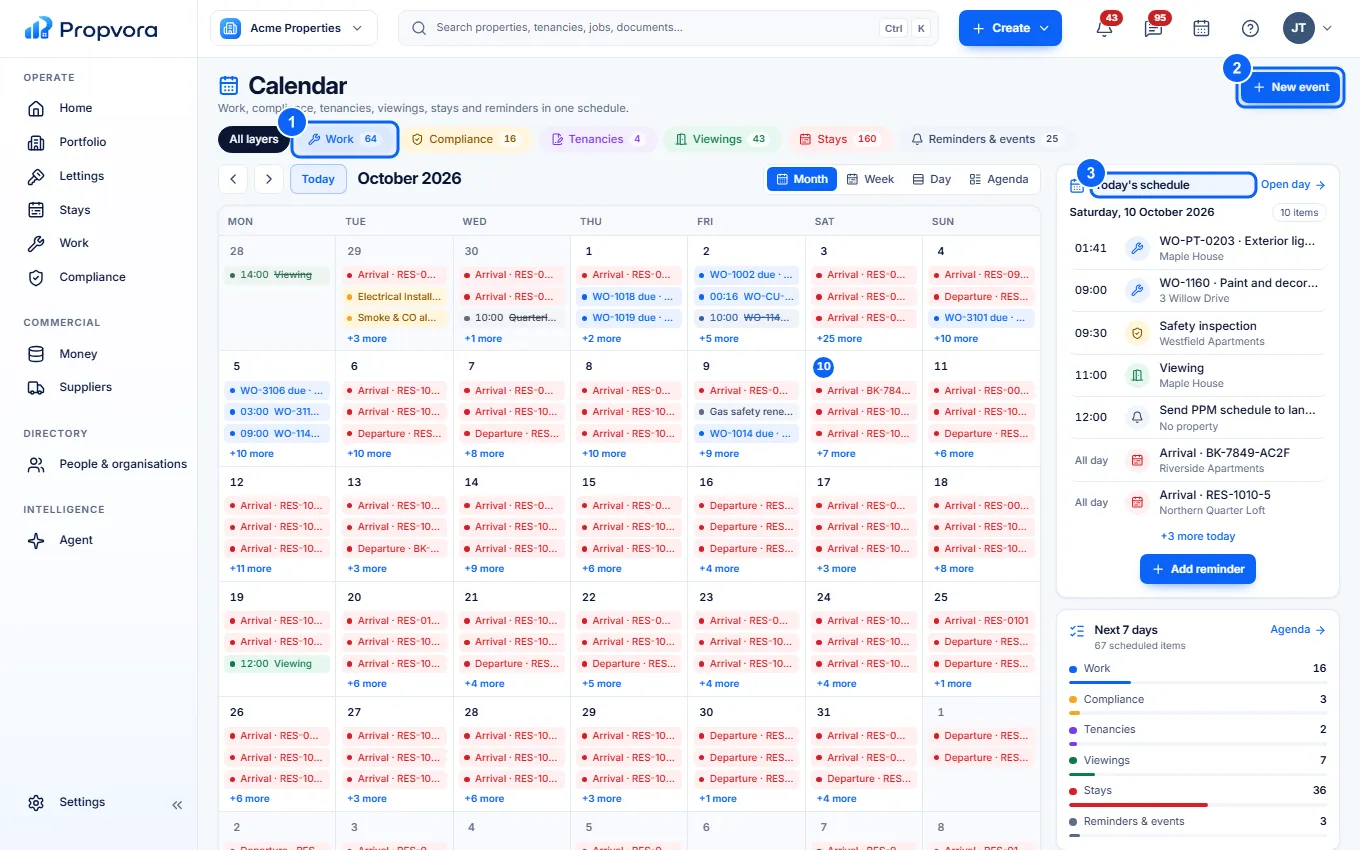
- Turn layers on or off: Work, Compliance, Tenancies, Viewings, Stays and Reminders & events.
- New event: add your own event or reminder.
- Today's schedule and Next 7 days list what is coming up.