Property manager guides
Your Home dashboard, search and Create menu
What the Operations Command Centre shows, how to search everything with Ctrl+K and how to create any record from the top bar.
- Updated
- Reading time
- 2 min read
On this page
Home is the first page of your workspace. It brings the day's priorities from every area together, so you can see what needs attention without opening each section. Every tile and list item links straight to the filtered record or list behind it.
Find your way around Home
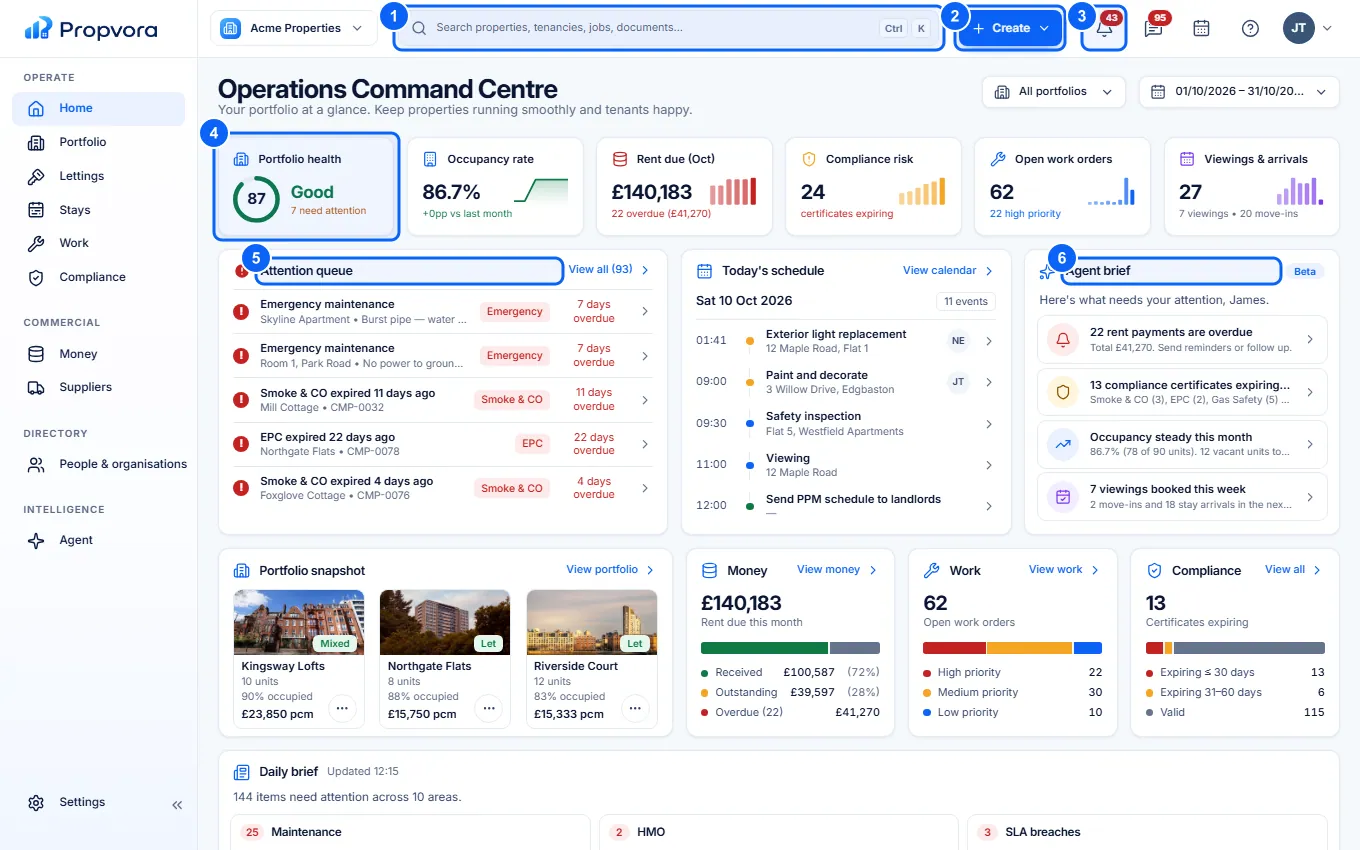 (opens the full-size screenshot)
- Search (top bar): find properties, units, tenancies, people, work orders, compliance records, documents, reservations, conversations and invoices. Press Ctrl K (or ⌘ K on a Mac) from any page.
- Create: add a property, tenancy, work order, compliance record, invoice or bill, rental listing, stay listing or quote request.
- Notifications (bell): new events for you in this workspace. The number is your unread count.
- KPI tiles: portfolio health, occupancy, rent due, compliance risk, open work orders and viewings. Select a tile to open the matching filtered list.
- Attention queue: the most urgent items across emergency repairs, expired certificates, arrears and more. View all shows the full queue.
- Agent brief: a short summary of what needs attention, with links to act on each point.
Use All portfolios and the date range at the top right to narrow Home to one portfolio or period. Further down you will find Today's schedule, Portfolio snapshot, Money, Work, Compliance, the Daily brief and Recent activity.
Search everything
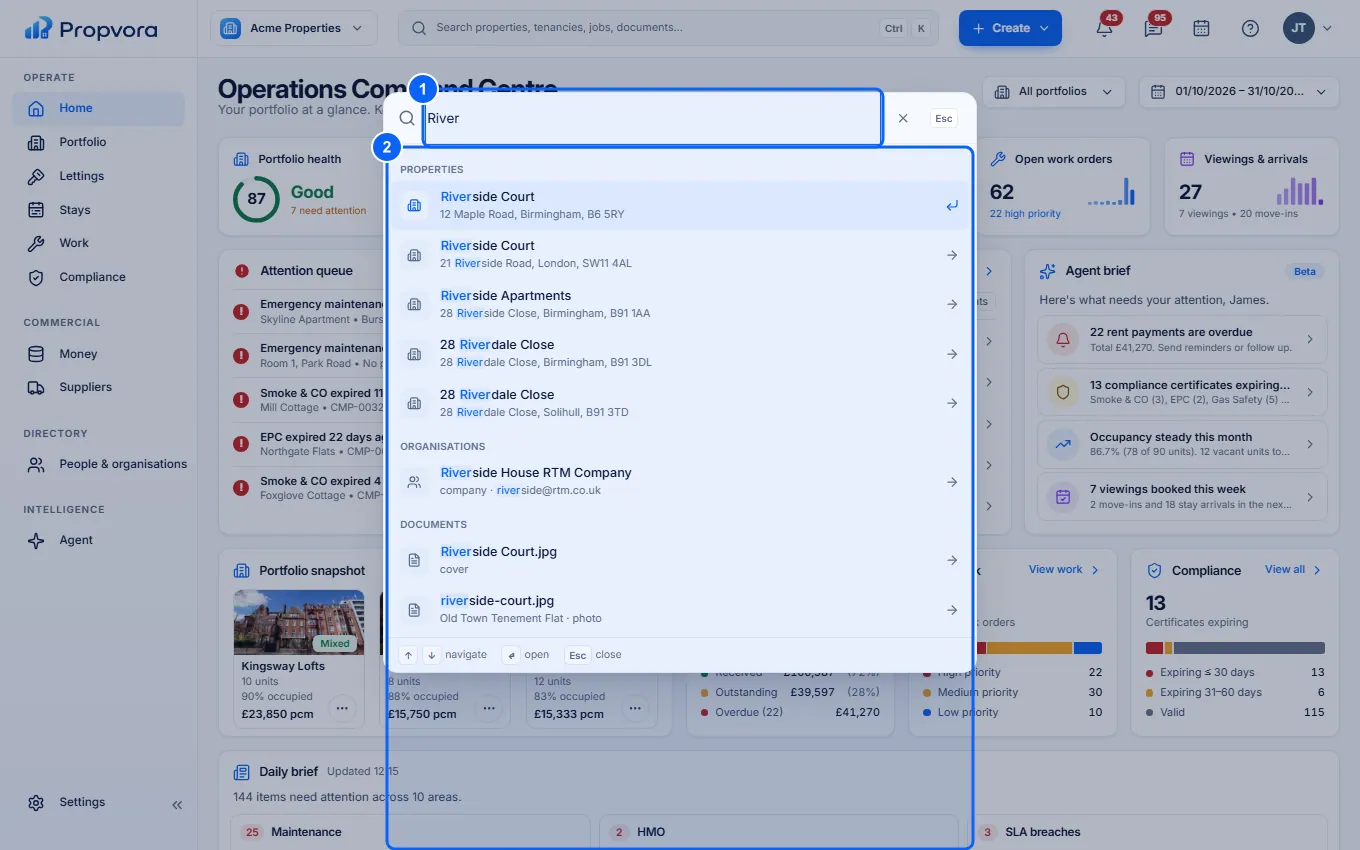 (opens the full-size screenshot)
- Type at least two characters into the search box. Words can appear in any order, for example a tenant's first and last name.
- Results are grouped (Properties, Units, Tenancies, People, Organisations, Work, Compliance, Documents, Stays, Suppliers, Inbox, Money and Marketplace). Use the arrow keys and Enter, or click a result to open it.
Press Esc to close search. On a phone, tap the magnifying glass in the top bar.
Guided tours
The first time you open each section, a short guided tour points out its main tabs and actions. Skip it at any time, use Don't show tours to switch tours off, or switch Guided tours off and use Replay tours in Settings › My account.
Quick answers
Why can't I find a record in search?
Search needs at least two characters and looks at names, references, addresses, postcodes and email addresses. Check you are in the right workspace, and that the record has not been archived.