Property manager guides
Work orders, tasks and planned maintenance
Raise and track repairs, assign suppliers, keep a task list and schedule recurring planned maintenance.
- Updated
- Reading time
- 1 min read
Work is where repairs and maintenance live. Tenants can report repairs from their portal, and you can raise work orders yourself, assign your own suppliers or request quotes from the marketplace.
Find your way around Work
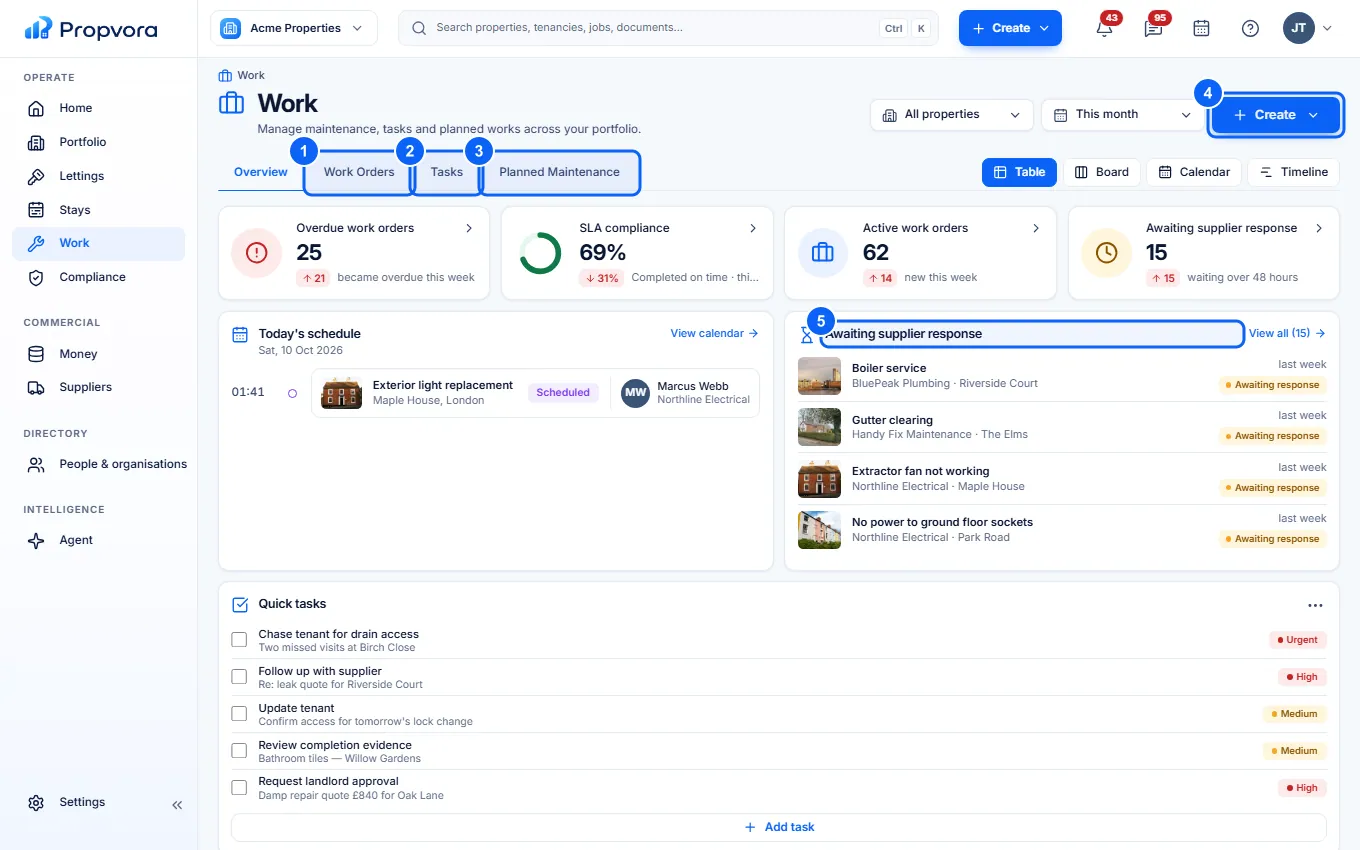 (opens the full-size screenshot)
- Work Orders: the register of every job, with filters for status, priority and category.
- Tasks: quick to-dos for you and your team.
- Planned Maintenance: recurring jobs such as annual boiler services or gutter cleaning.
- Create: raise a work order.
- Awaiting supplier response: jobs waiting for a supplier to accept or quote.
Raise a work order
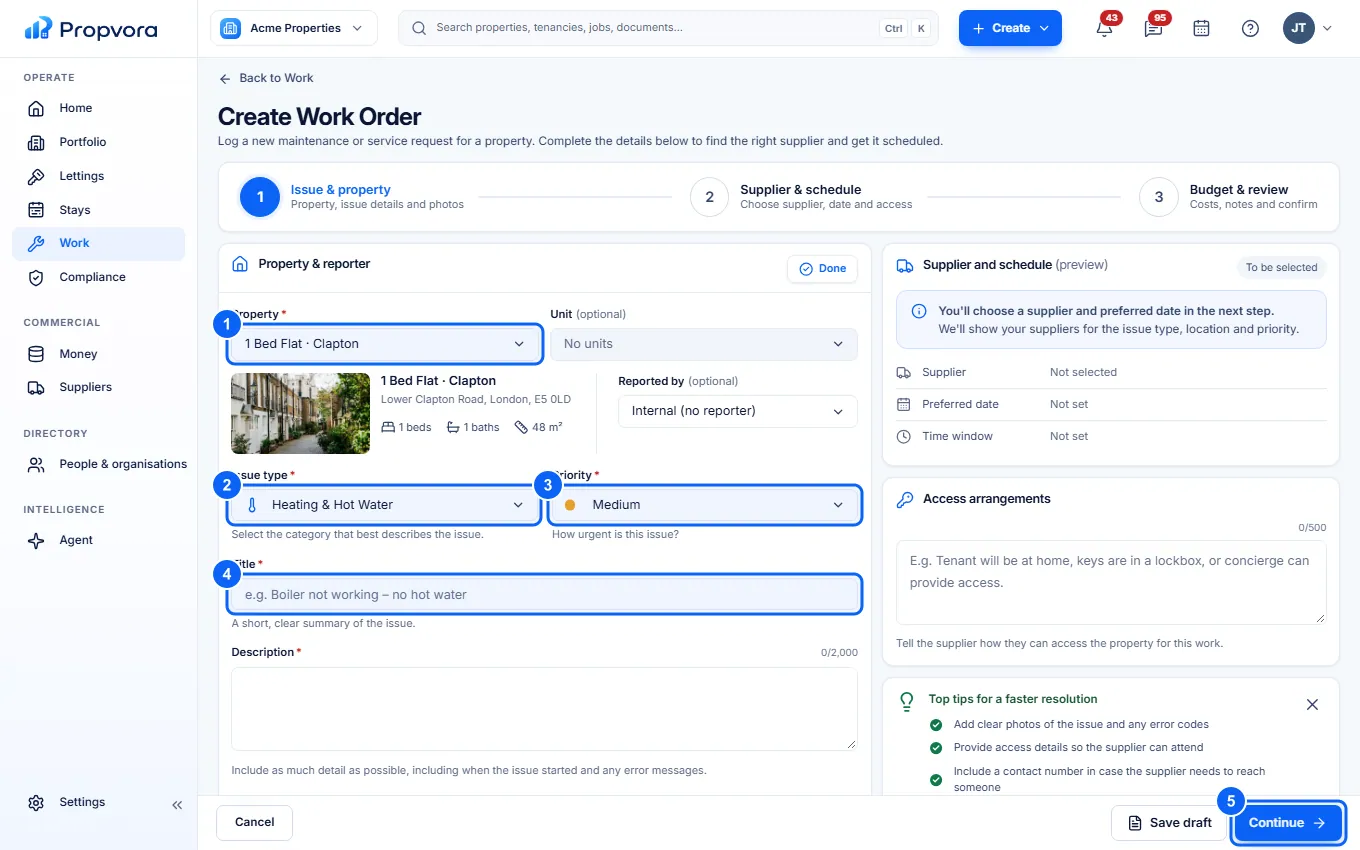 (opens the full-size screenshot)
- Choose the Property, and the Unit and Reported by if relevant.
- Choose the Issue type.
- Set the Priority. Emergency work is flagged on Home and in the attention queue.
- Give it a short Title and a Description, add photos and any Access arrangements.
- Choose Continue to pick a supplier and schedule, then create the work order.
Open any work order to follow its progress, message the supplier, approve quotes and check completion evidence. Landlords can approve work above their limit from the landlord portal when that is switched on in Settings › Rules & Access.