Supplier guides
Manage jobs, evidence and sign-off
Create and schedule jobs, collect completion evidence and customer sign-off, and move jobs through to complete.
- Updated
- Reading time
- 1 min read
On this page
Jobs holds work you have won or booked. Each job has a schedule, an assignee, a price and the evidence and sign-off rules that must be met before it can be completed.
Find your way around Jobs
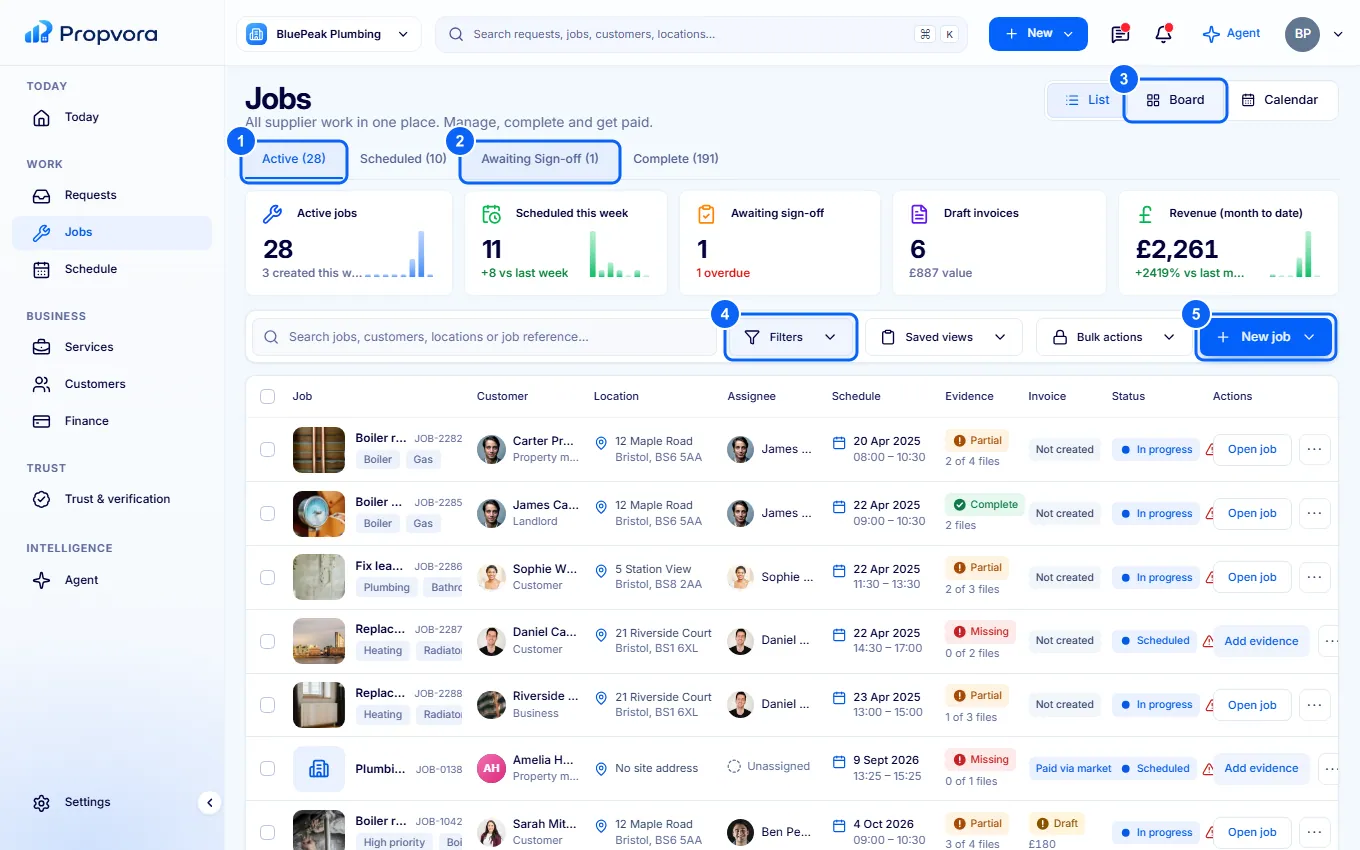 (opens the full-size screenshot)
- Active, Scheduled and Complete tabs split jobs by stage.
- Awaiting Sign-off: finished jobs waiting for the customer to sign off.
- Switch between List, Board and Calendar.
- Filters and Saved views narrow the list.
- Create: add a job yourself, for example for a customer outside the marketplace.
Create a job
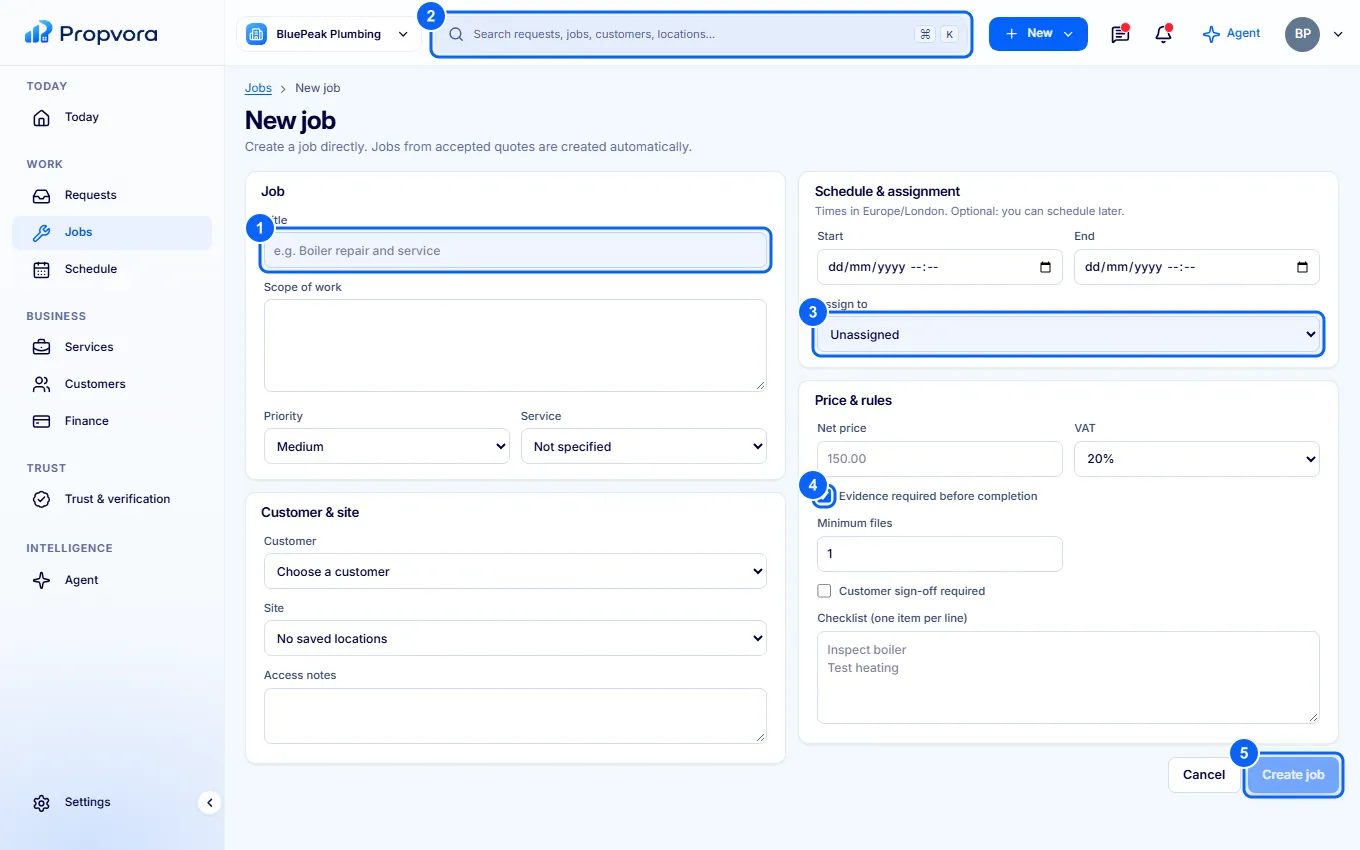 (opens the full-size screenshot)
- Enter the Title and Scope of work, and choose the Priority and Service.
- Choose the Customer and Site, and add Access notes.
- Set Start and End, and Assign to an engineer.
- Under Price & rules, set the Net price and VAT, and choose whether Evidence required before completion (with a minimum number of files), Customer sign-off required and a checklist apply.
- Choose Create job.
Complete a job
Open the job, upload your evidence (before and after photos, notes and any certificate the work legally requires) and mark it complete. For marketplace jobs, payment is released once the evidence is in and the customer approves or their review window ends without an issue. See When is payment released?